

The start page shows what the club offers: training, the TRIKids, the club and the newsletter. From here the menu takes you to every page. On a computer the menu is at the top, on a phone in the bar at the bottom.

What the start page shows
At the top: the pictures
At the very top large pictures run through, for example #gemeinsam Trainieren, Swim Bike Run and TRI-Kids Programm. The arrows page on. register opens the post about membership, » Information the post about the picture's topic. On the Quality Movement picture, Info opens that partner's website.
Training and club
Below come a TRIKids section whose more details opens photos, and under from beginner to professional the training offer: Run, Cycling, Swim, Competitions, Association and Offer, each with more details. Under become a member of the association, Registration leads to membership and Just ask us! to the chat. Under The Association you find Board, Honorary members, Members, Trainer and Our Vision.
Further down
Further down you sign up for the Newsletter (see Newsletter). Then come the links to Instagram, Strava and Facebook, the Motivational videos from training and competitions, the club's Partners and a map with the meeting point. The link for directions opens the route in Google Maps.
On a computer: menu, side bar and footer
At the top are Club, Blogs, TRIKids and Shop. Under Admin you find Calendar, the chat (Help), your pages (My profile, My family, My orders) and the management pages for the board. Pages that need you to sign in take you to the sign-in first. Language switches between German and English. Help opens the guide to the page, Sign in the sign-in.
On the right edge are Partner, Calendar (the next dates, with a link to the whole calendar), Shopping basket, Help and Search. In the footer the dots in the middle open the menu as a card, the legal notice link the club's details.
On a phone: the bar at the bottom
On a phone a bar with five buttons sits at the bottom: Back, Search, a button for this page in the middle, Account and Menu. On the start page the middle button is called Sections and jumps to a part of the page. On your own pages it is My area, on blogs and help it shows the list.
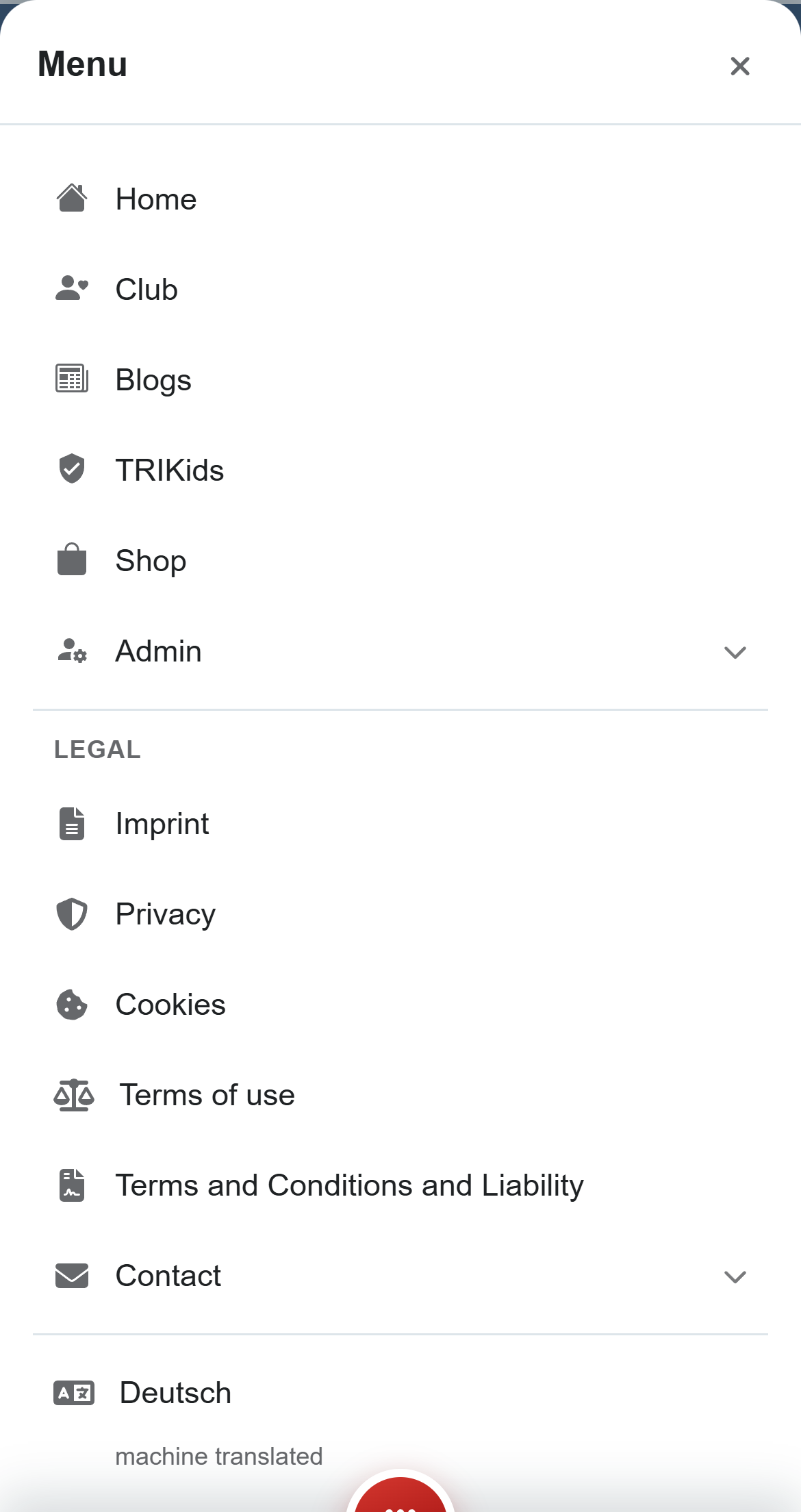
Account opens Sign in, Register and Help; when you are signed in it shows My area, My orders and sign out. Menu shows all of the club's pages, Legal, the contact, social media and the other language.
Buttons and dialogs
- register and the membership button further down: open the post about membership.
- The chat button under the membership call: opens the club's chat.
- The edit button of the newsletter: opens the form to sign up or off.
- A picture under Motivational videos: plays the video.
- Calendar on the right edge: shows the next dates in a window. close closes it.
- Shopping basket: opens your basket; the number next to it says how much is in it.
- Search: opens the search over the whole site.
- Help: opens the guide to the page you are on (see Using the help).
If something goes wrong
- A page asks you to sign in → Your own pages such as My profile or My orders exist only when you are signed in. Sign in and you come back there.
- Admin leads nowhere → The management pages are only for the board and the trainers.
- The page is in the wrong language → Switch it on a computer under Language, on a phone under Menu.
- On a phone there is no menu at the top → On a phone it is at the bottom of the bar under Menu.
- A note about cookies appears instead of the video → You have not accepted the cookies yet. Tap Accept cookies in the note, then tap the picture again.
- A section is missing or has another name → The club looks after the start page's pictures, texts and sections itself, so they can change. On a phone Sections shows what is there right now.
Frequently asked questions
What can I find on the start page?
The training offer, the TRIKids, the club with its board and trainers, the newsletter sign-up, motivational videos, the partners and a map with the meeting point.
How do I become a member?
Tap register on the start page or the membership button further down. It opens the post about membership; you book it in the shop.
Where do I find the training offer?
On the start page, in the training section: running, cycling, swimming, competitions and offer, each with a link to more details.
Where is the club’s meeting point?
At the very bottom of the start page there is a map with the meeting point. The directions link opens the route.
Where are my orders on a computer?
In the menu at the top under Admin, then My orders under User. Signed out, the link takes you to the sign-in first.
How do I switch the language to German?
On a computer tap Language at the top and choose German. The page then shows in German.
What are the buttons on the right edge?
Partner, Calendar with the next dates, Shopping basket, Help and Search. Each opens a window or the matching page.
Where is the menu on a phone?
In the bar at the bottom: Menu shows all of the club’s pages, Legal, the contact and the other language.
What does the button in the middle of the bar do?
It belongs to the page: on the start page Sections jumps to a part of the page, on your own pages My area lists your pages.
How do I sign in on a phone?
Tap Account at the bottom, then Sign in. You also find Register and the help there.
What does the chat button on the start page open?
The club’s chat. There you ask about training, dates, prices and membership.
What does the calendar on the right edge show?
The next dates in a window. Its link to the whole calendar opens the full calendar.
What is the number next to the basket?
It shows how many offers are in your basket. Tapping it opens the basket.
Why does a page ask me to sign in?
Your own pages such as My profile or My orders exist only when you are signed in. After signing in you come back there.
Why can I not get into Admin?
The management pages are only for the club’s board and trainers.
Why is there no menu at the top on my phone?
On a phone the menu is in the bar at the bottom. Tap Menu there.
Why does a note about cookies appear instead of the video?
You have not accepted the cookies yet. Tap Accept cookies in the note, then tap the picture again.
